
Which Products Does Shoply AI Index, and How to Exclude Certain Products
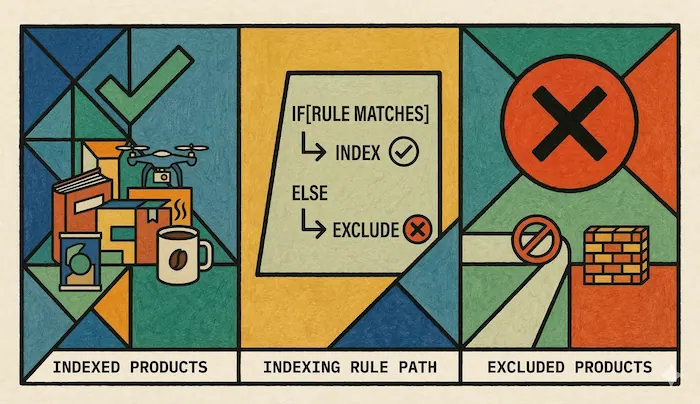
Shoply AI automatically indexes the products in your Shopify store so that customers can search, discover, and ask questions about them. This page explains which products are included in the index by default, and the different ways you can exclude specific products from being indexed.
What Gets Indexed by Default
Shoply AI indexes all products that are Active in your Shopify store. Products with a status of Draft or Archived are automatically skipped.
How to Exclude Specific Products
There are six ways to exclude a product from Shoply AI’s index.
1. Set the Product Status to Draft or Archived
The simplest way to exclude a product is to set its status to Draft or Archived in Shopify. Shoply AI only indexes Active products.
2. Use the seo.hidden Metafield
If a product has the Shopify SEO metafield seo.hidden set to "1", Shoply AI will skip it. This is the same signal used by Shopify to hide a product from search engines, and Shoply AI respects it.
This metafield is typically managed via Shopify’s built-in SEO settings on the product page.
3. Use the shoply.no_index Metafield
You can add a custom metafield with the key shoply.no_index to any product you want excluded. Set its value to "1" or "true" (case-insensitive) to prevent it from being indexed.
This is useful when you want to hide a product from Shoply AI specifically, without affecting its visibility in the Shopify storefront or search engines.
To add this metafield:
- Go to the product page in your Shopify admin
- Scroll to the Metafields section at the bottom
- Add a metafield with namespace
shoply, keyno_index, and value1ortrue
4. Exclude Products by Tag (Advanced Settings)
You can configure Shoply AI to automatically skip any product that has a specific tag. This is useful for bulk exclusions — for example, excluding all products tagged "internal", "sample", or "not-for-sale".
To configure this, go to the Settings -> Advanced Settings section in the Shoply AI admin console and add the following to the JSON configuration:
{
  "exclude_products_with_tags": ["internal", "sample", "not-for-sale"]
}
Any product with at least one of the listed tags will be excluded from the index. Tag matching is case-insensitive.
5. Exclude Free Products (Advanced Settings)
If your store contains products with a price of $0.00 (such as free samples, gift cards, or placeholder products) and you don’t want them to appear in search results, you can enable the exclude_free_products setting:
{
  "exclude_free_products": true
}
When enabled, any product whose maximum variant price is $0.00 will be excluded from the index.
6. Filter by Sales Channel (Advanced Settings)
If your store publishes products to multiple sales channels (e.g., “Online Store”, a wholesale channel, or a POS channel), you can configure Shoply AI to only index products that are published to a specific sales channel.
For example, if you only want Shoply AI to index products available on your Online Store, products published exclusively to other channels will be excluded.
To enable this, go to Settings -> Advanced Settings and add the following to the JSON configuration:
{
  "sales_channel": "Online Store"
}
Replace "Online Store" with the exact name of the sales channel as it appears in your Shopify admin.
Summary
| Method | Where to Configure | Best For |
|---|---|---|
| Set status to Draft/Archived | Shopify product page | Products not ready for sale |
seo.hidden = "1" metafield | Shopify product SEO settings | Products hidden from all search |
shoply.no_index = "1" metafield | Shopify product metafields | Hiding from Shoply AI only |
exclude_products_with_tags | Shoply Advanced Settings | Bulk exclusion by tag |
exclude_free_products | Shoply Advanced Settings | Hiding $0 products |
sales_channel | Shoply Advanced Settings | Excluding products not on a specific channel |
Where to Find Advanced Settings
Go to the Settings page in the Shoply AI admin console, then scroll down to the Advanced Settings section.
You can provide a JSON object there to configure exclude_products_with_tags, exclude_free_products, and other options.
After Making Changes
After excluding a product using any of the methods above, the change will not take effect immediately. You need to either:
- Manually trigger a Recrawl in the Shoply AI admin console, or
- Wait for the next automatic index update
See also: Controlling Which Product Metafields Shoply Can Use